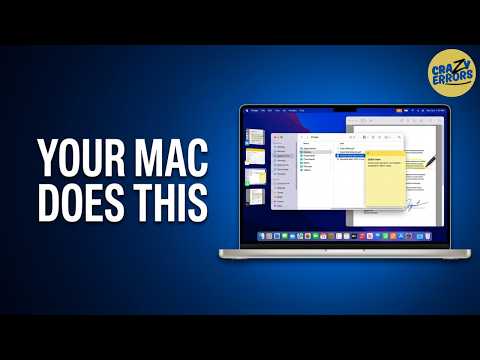
Your Mac Already Does All of This — You Just Haven't Set It Up Yet
This video walks through 8 built-in macOS features that make everyday Mac work faster and smoother—without installing anything. The main idea is that these aren't "hidden hacks," but simple workflows most people never turn into habits. By the end, you're encouraged to set up a few of them so your Mac starts feeling "effortless" instead of manual.
1. The core idea: Your Mac feels manual because you're not using what's already built in
The video opens with a simple question: how do you handle small tasks on your Mac—like moving info from your phone, capturing a quick idea before it disappears, or switching between work without losing your place?
The creator's point is that if any of these still feel slow or clunky, macOS already has better defaults—you just haven't integrated them into your workflow.
"If any of that still feels manual, then your Mac has a better way to do it. You're just not using it."
They emphasize this isn't about secret menus or advanced settings—it's about everyday features that people "walk past" constantly.
"These are not hidden tricks. They are not advanced settings."
2. Quick Look: Preview any file instantly (no app opening) 🚀
First workflow: Quick Look, which lets you preview files instantly.
Most people double-click a file, wait for the app to open, then wait for the file to load. Quick Look skips all of that:
- Click a file once to select it
- Press Spacebar to open an instant preview
- Press Spacebar again to close it
This works for lots of file types (PDFs, images, documents, etc.), and the big win is speed when you're scanning through many files.
"Click on any file once to select it, then hit the spacebar, and you see an instant full preview. No app open, no loading time."
They frame it as a tiny habit that adds up daily.
"If you go through files regularly, this single action saves minutes every single day."
3. Text Replacement: Stop typing the same things again and again ⌨️
Next: Text Replacement, a built-in macOS feature that expands short shortcuts into full text—perfect for repeated info like:
- your email
- company name
- phone number
- common phrases you type all the time
"How many times do you type the same thing—whether it's your name, your email address, your company name, your phone number?"
How to set it up (as shown in the video):
- Open System Settings
- Find Text Replacement
- Click the + button
- Enter a short trigger (2–3 characters)
- Enter the full phrase
- Click Add
- When typing anywhere (Mail, Safari, etc.), type the shortcut and press Space to accept the expansion
"Set five of these for the things that you type most, and you will wonder why you were missing this feature till now."
Keyword to remember: Text Replacement = "tiny shortcut → full phrase."
4. Finder navigation shortcuts + the Finder Undo trick most people miss 🗂️
Now the video shifts into Finder (macOS file manager) and how people waste time navigating with the mouse.
Faster back/forward navigation (no clicking)
Instead of clicking Finder's back/forward buttons, use:
- Command + [ (left bracket) = Back
- Command + ] (right bracket) = Forward
"Pressing Command plus left bracket, you go back… Command plus right bracket, you go forward. No mouse."
Undo works in Finder too
Then comes a surprisingly powerful point: Undo isn't only for apps like Word—it works in Finder actions too (like renaming).
Example shown: rename something incorrectly, then press:
- Command + Z = Undo (even in Finder)
"On Macs, undo works not only in apps… but also in Finder."
And they stress how many people don't know this.
"There are [a] majority of Mac users who have no idea [about] it."
Key idea: treat Finder actions like editable actions—Undo is your safety net.
5. Moving files "the Mac way": the hidden cut behavior ✂️➡️📁
This section targets a common frustration for Windows switchers: macOS doesn't show a normal "Cut" option the same way.
They describe the slow method many people do:
- Copy the file
- Paste it somewhere else
- Go back
- Delete the original
"That is absolutely inconvenient and time-consuming."
Method A (easy): Use Finder tabs/windows and drag-drop
They recommend making moving easier by opening another Finder location in a new tab:
- In Finder, press Command + T to open a new tab
- Put source folder in one tab and destination in the other
- Drag the file/folder from one to the other
"Just like the way you open tabs in your web browsers, you can open [tabs] in Finder too."
Method B (traditional "cut-like"): Copy, then "Move Item Here"
macOS can "move" after copying by using a special paste:
- Copy with Command + C (the subtitles show "Control C," but the standard macOS shortcut is Command + C)
- In the destination folder, press Option + Command + V
This performs a move (paste and remove from original location).
"You need to actually press and hold Option… and then press Command and V."
Keyword: Option + Command + V = "move instead of copy."
6. Use Preview to sign, annotate, crop, rotate, and even merge PDFs 🧾✍️
Next, the creator calls out something many people still miss: Apple's Preview app can handle a lot of basic PDF/image editing—often removing the need for paid tools.
"Most people think they need some third-party app, but built-in Apple's Preview app does more than most people ever discover."
What they demonstrate inside Preview:
- open a PDF or image
- click the toolbar button (Markup tools) to reveal extra editing options
- add text
- add a signature
- rotate/change orientation
Signature workflow:
- Click the signature tool
- Create a signature
- Drag it onto the document where needed
"Whenever there's a document [that] requires your signature, all you need to do is… drag your signature anywhere you want."
They also mention they have a separate dedicated video for Preview for more depth.
"The Preview app does a lot more than that."
Keyword: Preview isn't just viewing—it's basic document work.
7. Multiple Desktops (Spaces): Separate work, personal, and "messy" tasks 🌙➡️🌞
Now the video tackles a very real problem: your desktop becomes chaos—too many windows, mixed contexts, and constant rearranging.
"One pile of open windows… work mixed with personal… constantly moving things around to find what you need."
Solution: Multiple Desktops (also called Spaces).
How to create them:
- Swipe up with three fingers to open Mission Control
- Click the + at the top-right to add a new desktop
- Create as many as you need
- Assign each desktop a purpose (Work / Personal / Research / Social, etc.)
Switching between desktops:
- Swipe left/right with three fingers, or
- Use Control + Left/Right Arrow
"Now you can assign these desktops for different purposes."
Keyword: Spaces = separate environments so your brain doesn't juggle everything in one place.
8. The Thought Capture Workflow: Hot Corner + Notes + Dictation 📝🎙️ (stay focused)
This is presented as a combined workflow—three features working together—designed for when you're deep in work and suddenly remember something important.
They describe the usual approach (pen/paper, sticky notes) as slow and focus-breaking.
"That entire process takes approximately 30 seconds, and breaks your entire focus."
Step 1: Set a Hot Corner to open Notes
Go to:
- System Settings → Desktop & Dock → Hot Corners
- Assign Notes to the bottom-right corner (as shown)
Step 2: Enable Dictation (and auto punctuation)
Then:
- System Settings → Keyboard
- Turn on Dictation
- Turn on Auto punctuation
- Confirm the shortcut is set to pressing the Globe key twice (or set it)
"Check if dictation is enabled… and then also enable auto punctuation."
Step 3: Capture the thought instantly
When the thought hits:
- Move cursor to the hot corner → Notes opens
- Press Globe key twice
- Speak your note
- Press again to stop dictation
"Now you start speaking whatever you want… and [Notes] is going to take your note without you typing anything."
Big idea: reduce capture to a near-instant reflex so you don't lose your flow.
9. Stage Manager: A cleaner workspace for multi-app work 🎛️
Finally: Stage Manager, meant for people who juggle multiple apps at once.
When enabled:
- Your active app stays centered ("on stage")
- Other open apps sit in a strip on the left
- Click an app on the left to bring it forward; the previous app steps back
- You can group apps by dragging one onto another so they behave like a set
"Your active window takes center stage. Everything else sits in this strip on the left—visible, accessible, but out of the way."
Grouping is framed as especially useful when two apps belong together (for example, a browser + notes).
"They will group together, and they will work as one."
They also keep expectations realistic:
"This is not for everyone. You can just try it for a day…"
Keyword: Stage Manager = controlled multitasking without window chaos.
10. Closing message: once these become habits, everything feels easier
The creator ends by saying some viewers already know a few tips—but others will be brand new—and encourages you to comment what you found most valuable, like the video, and subscribe.
The emotional takeaway is that your Mac becomes "smooth" when these features stop being optional tricks and start being your default way of working.
"I'm pretty much sure some of these features you already knew… but some probably are new to you."
"When everything starts to feel easier."
Conclusion
The video's main lesson is simple: macOS already includes speed + focus workflows like Quick Look, Text Replacement, Finder shortcuts/Undo, proper file moving, Preview PDF tools, Spaces, a thought-capture setup, and Stage Manager. If you set up even a few—especially Text Replacement, Spaces, and the Hot Corner + Dictation Notes capture—your daily work quickly feels less manual and more automatic.
Need a summary like this?
Get instant summaries with Harvest